You have a WordPress site for your holiday home or B&B. You want guests to check availability, book and pay on that site, and you want Airbnb and Booking.com to stay in sync, without installing a heavy rental theme.
The steps below follow the WordPress block editor, with a separate step for Elementor. This is part of our guide to a booking calendar for website builders.
What you need
- A WordPress site you can edit: the block editor, or Elementor.
- A Bookinghook account with your property set up: rates, extras and how you want to be paid. That takes about half an hour, and we are happy to help.
Bookinghook widget or a WordPress rental theme?
| Bookinghook widget | Rental theme or plugin (for example WP Rentals) | |
|---|---|---|
| Best when | Your site already looks right and you need bookings, calendar sync and payments | You want the whole rental site built inside WordPress |
| Install | Paste embed code. Nothing to install or update. | Theme or plugin install and setup |
| Payments | Stripe and Mollie on Professional and Business. No Bookinghook commission. | Depends on the theme or plugin; check its documentation |
| Airbnb and Booking.com | Two-way iCal on every plan; channel manager on Professional and Business | Depends on the theme or plugin; check its documentation |
WP Rentals is a WordPress theme from WpEstate. We did not test it, so check wprentals.org for what it does today (checked 10 November 2026).
If you already like your theme, the widget adds bookings, calendar sync and payments without changing it. Building everything inside WordPress with a rental theme is a different, bigger project.
Step by step: the Custom HTML block
1. Get your Bookinghook embed code
- Log in to Bookinghook.
- In the left menu, open This rental → Widget.
- Optional: set your brand colour under Branding and save, so the widget matches your site.
- In the Embed widget section, choose Embed (the booking form sits inside your page), pick a language, and keep Script under How to embed.
- Press Copy code.
The Go to widget button on the Add reservations page opens the same screen.
2. Paste it into WordPress
- In WordPress, edit the page where guests should book, for example a "Book" page or your property page.
- Click + to add a block.
- Search for Custom HTML and add it.
- Paste the Bookinghook code into the block.
- Preview, then Update or Publish.
Open the live page on your phone and on a desktop. Make a test booking yourself, and cancel it in Bookinghook afterwards.
3. Elementor
- Edit the page with Elementor.
- Drag an HTML widget onto the page.
- Paste the same Bookinghook code, then publish.
If the calendar stays blank in Elementor, try a Custom HTML block in the block editor on a simple page, or put your booking link on a button.
4. Connect Airbnb and Booking.com
Embedding alone does not sync calendars. Set up two-way iCal sync, or the channel manager on Professional and Business, so a booking on your WordPress page closes the dates on Airbnb and Booking.com, and platform bookings close your widget. iCal is reliable but not instant. Full steps: how to sync Airbnb and Booking.com with Bookinghook.
What guests can do on your WordPress page
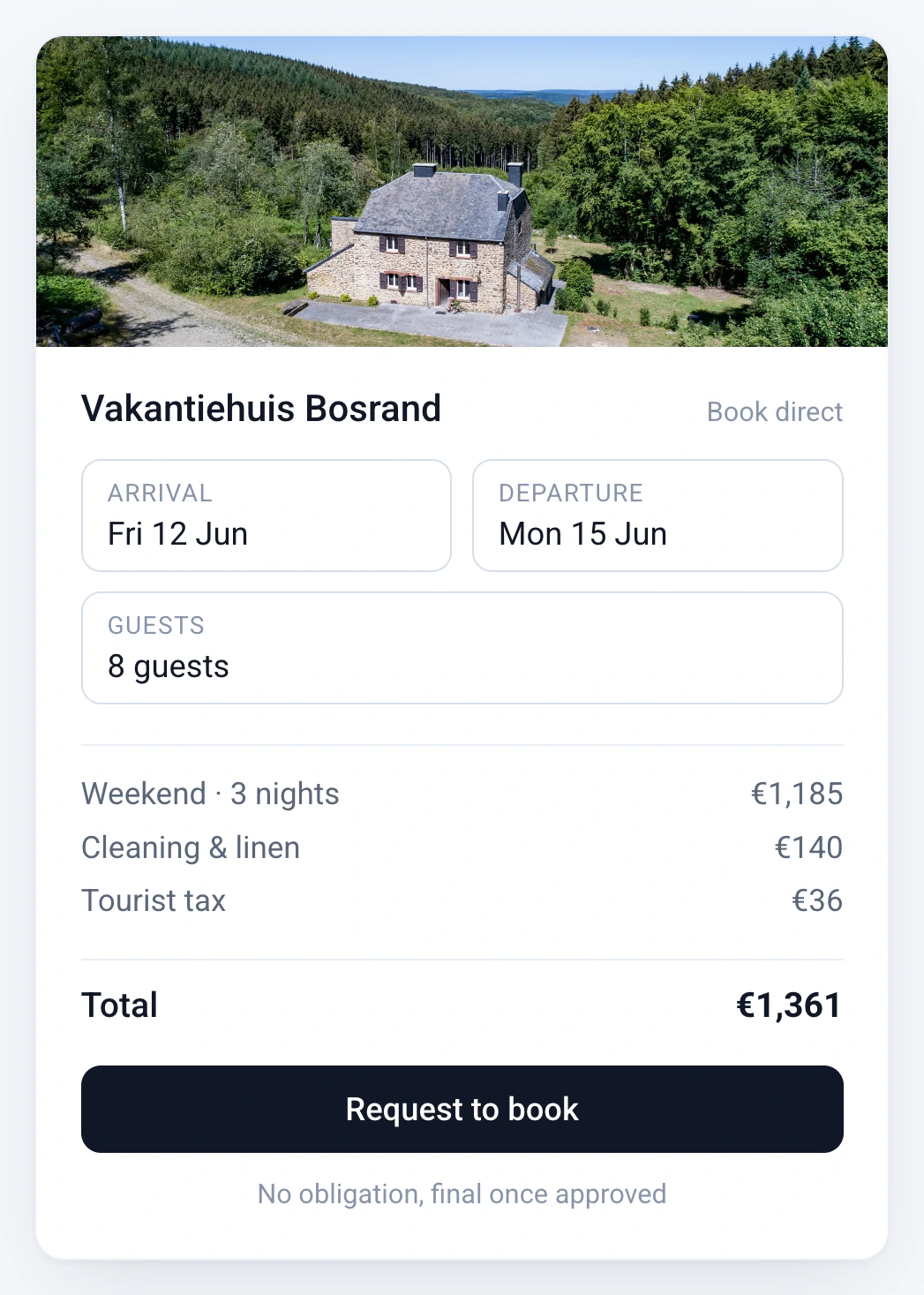
- See live availability.
- On Professional and Business: pay a deposit, and later the balance, through Stripe or Mollie, with extras such as cleaning, linen, tourist tax or pets included in the booking.
- On Professional and Business: get guest emails and VAT invoices from Bookinghook.
Troubleshooting
| Problem | What to try |
|---|---|
| The widget is blank after publishing | Check that the block allows scripts. Some security, caching or optimisation plugins strip them. Switch "How to embed" to Iframe in the dashboard, or put your booking link on a button. |
| The widget is cut off | If you chose Iframe, use the same height in WordPress as in the dashboard: 600 to 900 pixels, and 780 fits most pages. |
| Dates differ from Airbnb | Finish two-way calendar sync. Platforms read your calendar on their own schedule, so iCal is not instant. |
| You want payments later | Share your booking link first and add the widget when you are ready. |
Frequently asked questions
Do I need a developer?
No. If you can add a block in WordPress, you can paste the code. If you get stuck, ask us.
Does it work with WooCommerce?
You do not need WooCommerce. Bookinghook handles checkout through Stripe or Mollie on Professional and Business. Keep WooCommerce for a shop if you have one, and use Bookinghook for stays.
Is there a Bookinghook plugin in the WordPress directory?
No. Bookinghook is embed code, so it works with any theme and there is no plugin to update.
The widget is blank after I publish. What now?
Some security, caching or optimisation plugins, and some user roles, strip or block scripts. In the dashboard, switch "How to embed" from Script to Iframe, or put your booking link on a button instead.
How much does it cost?
Basic is €15 a month billed yearly (€19 monthly), Professional €40 (€49) and Business €80 (€99). One price covers one to five properties. Online payments are on Professional and Business. There is a 14-day free trial, no setup fee, and you can cancel monthly.
Ready to take bookings on WordPress?
Try Bookinghook free for 14 days. Prefer a walkthrough? Book a 20-minute call, and we are happy to help you place the code.